Enter Timesheet
Tip: Simply enter .25 (1/4 hour) or .75 (3/4 hour) to log 15 minutes! |
Teambook allows any user (whatever his/her role) to enter the time actually spent performing activities ("timesheet"), so to enable activity tracking and potentially use this information for billing purposes.
To enter timesheets, select the menu Timesheet. Note that users with planner & admin roles have access to a toggle switch on the top right giving access to an approval submenu further to the timesheet entry screen.
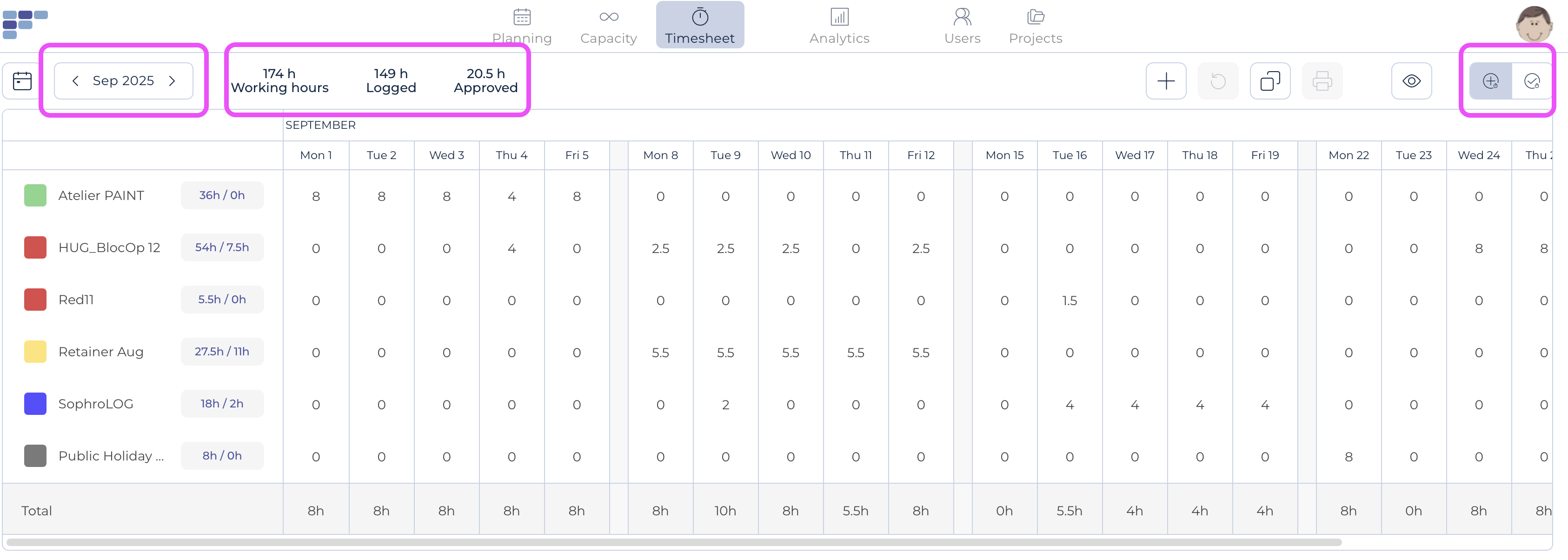
On the top left, the curent period is displayed (and you may use the arrows to switch to another one); Next to this are the number of hours entered for the period displayed, the number of hours approved and finally the total available (based on your exact personal schedule).
There are two ways to enter timesheet:
1. Copy the planning information into Timesheet; then amend only the records that need to
For organizations that have a very accurate planning process, whereby the users mostly tend to deliver what was planned, it could be worth to use the planning information to pre-fill the timesheets.
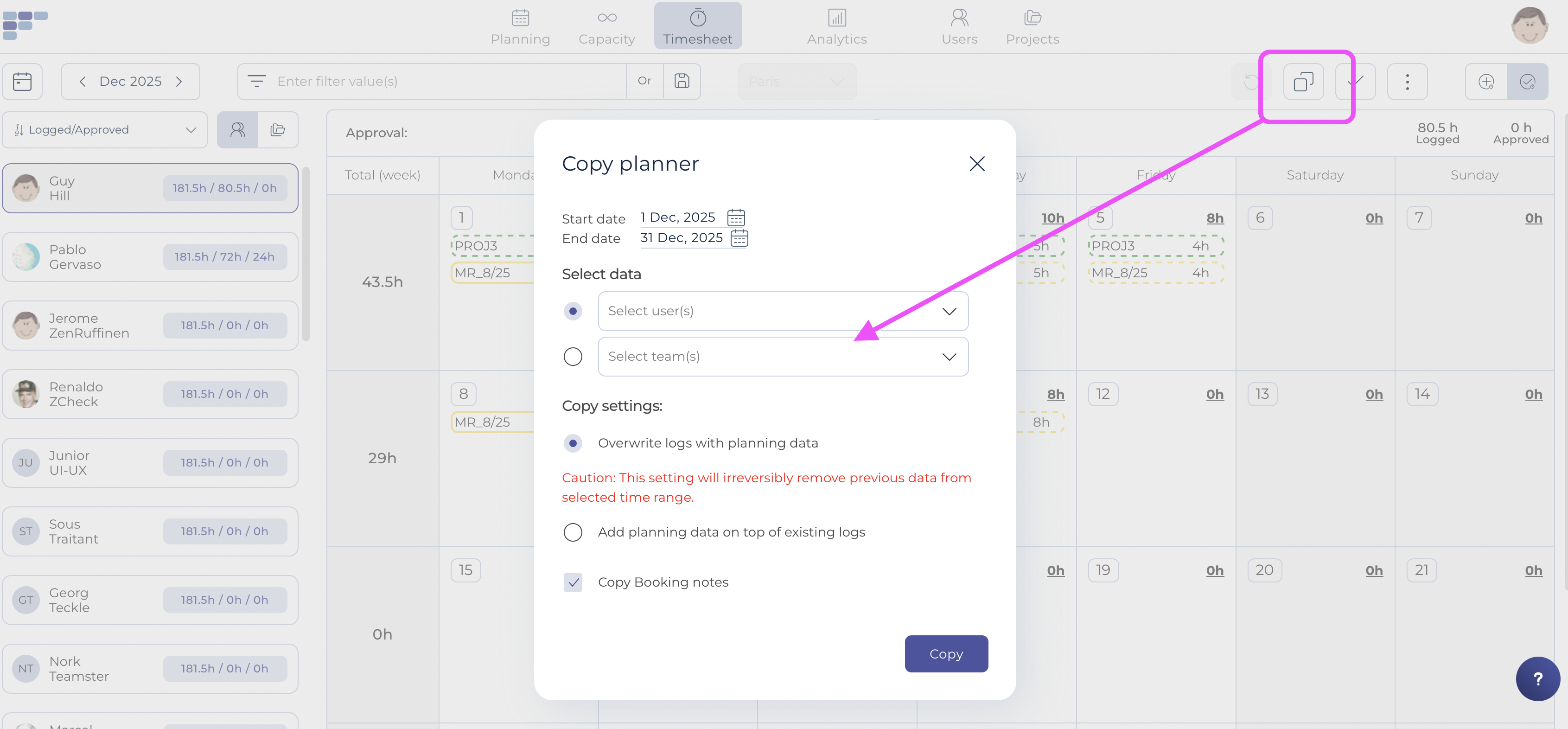
This copy feature is available to all users. For users with an admin or planner role, use the copy button within the approval screen, so to copy data for all users or selected teams:
And every user can also copy his/her own planning data, using the Copy button available in the timesheet entry menu:

Once data has been copied, you may in a second step edit any of the copied entries as per instructions below
2. Manual timesheet entry
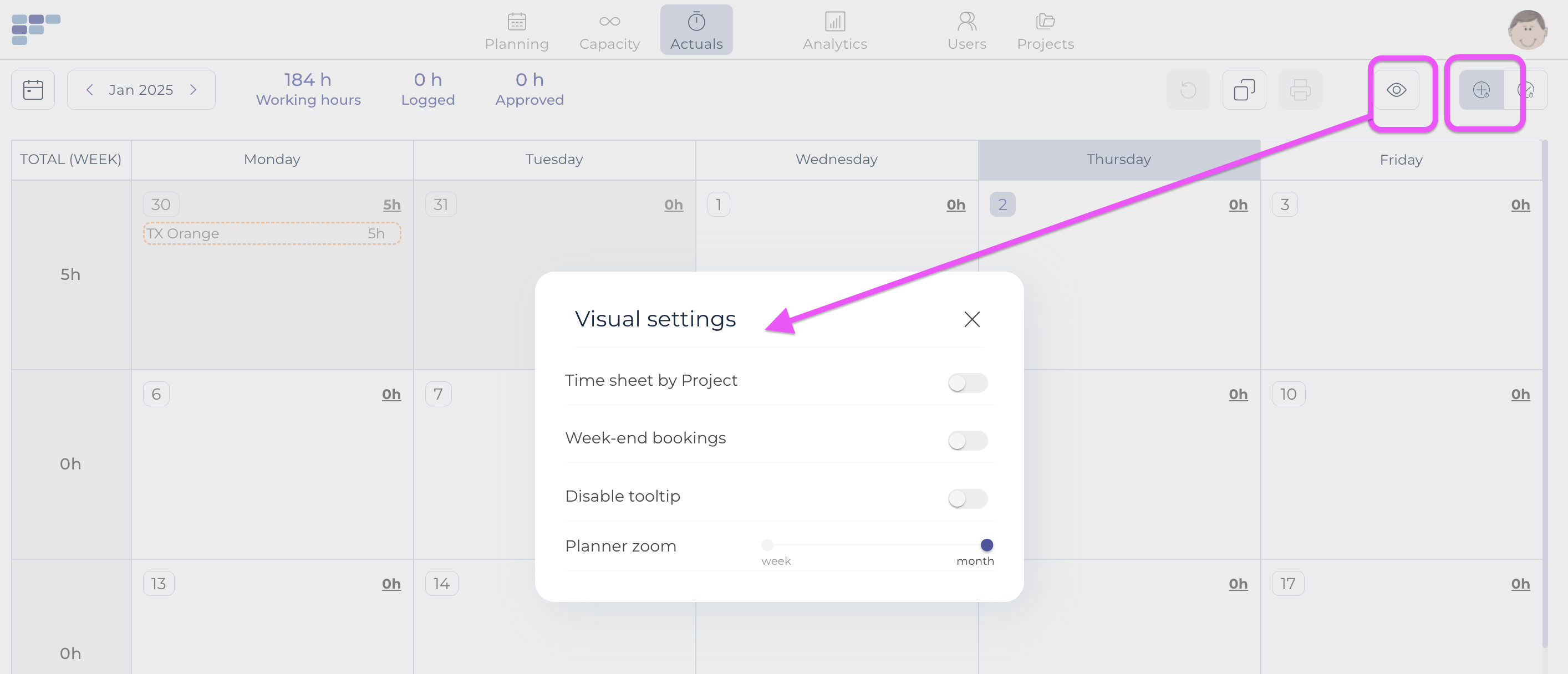
Your visual settings impact the timesheet entry screen; you may change them using the "eye icon" located next to the time sheet switcher. In particular the toggle Time sheet by project that is activated by default, shows a screen pre-filled with the recently used projects. If unticked, the screen will show a calendar view.
The Timesheet by Project view will allow you to very quickly enter timesheet, by simply entering figures (or over-writting pre-filled data). There is no obligation to fill-in additional information like tasks, payroll items and/or notes. Note that if want to assign a 2nd task, payroll item or comment for a record, you may do so by using the Add another log button.

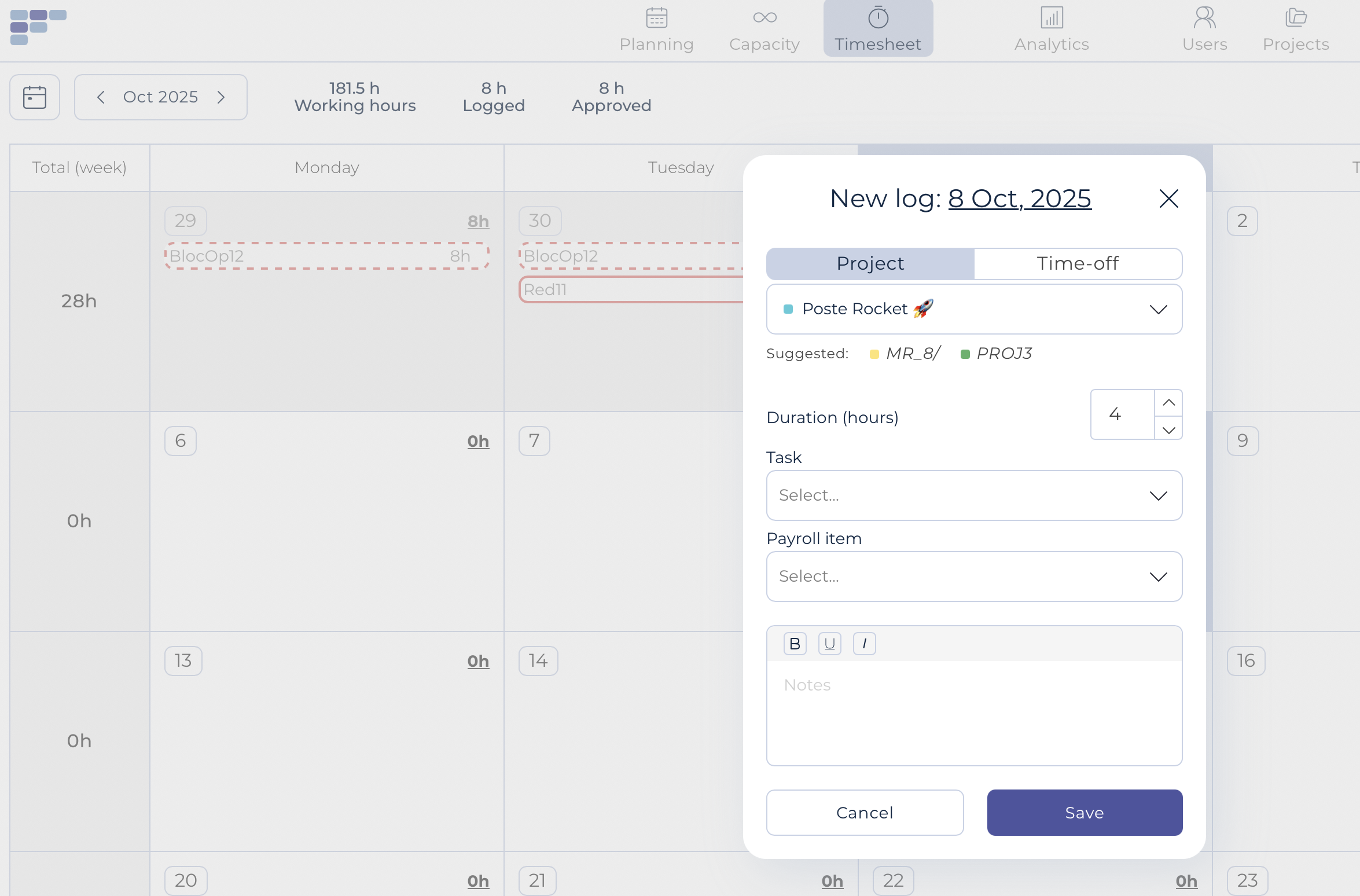
In the Calendar view you have to click on +log time (or anywhere in the cell of the given day) on any of the day and then fill-in all details. Note that Teambook will show Suggested projects (based on the most recent ones) so to ease data entry: